

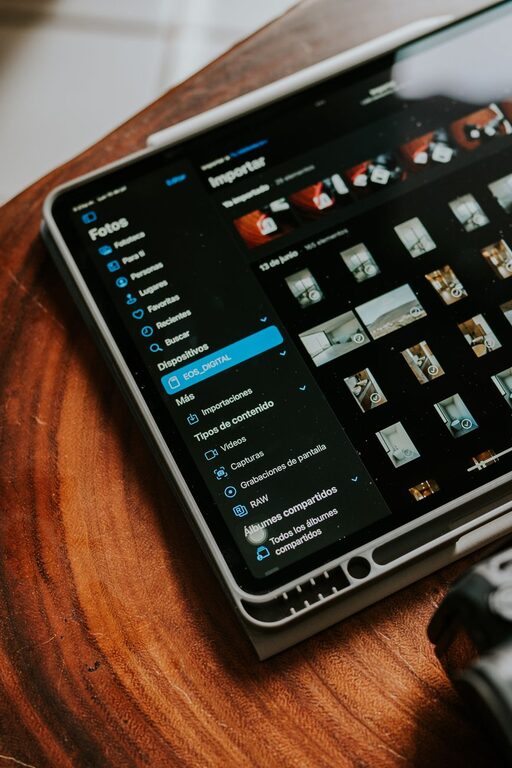
Digital clutter can be just as distracting as a messy desk. Unused apps, crowded inboxes, duplicate files, endless notifications, and forgotten accounts can make everyday tasks feel harder than they need to be.
Decluttering your digital life does not mean deleting everything or avoiding technology. It means creating a simpler, more organized digital environment that supports the way you work and live. With a few focused habits, you can reduce distractions, find important information faster, and feel more in control of your devices.
Start With a Digital Inventory
Before deleting anything, take a quick look at the digital spaces you use most often. This helps you understand where clutter is building up and prevents you from trying to fix everything at once.
Make a list of areas such as:
– Email inboxes
– Computer and phone files
– Photos and videos
– Apps and programs
– Browser bookmarks
– Cloud storage
– Social media accounts
– Notifications
– Online subscriptions
Choose one or two areas to begin with. Starting small makes the process easier to complete and gives you a clear sense of progress.
Organize Your Files
A simple file system can save time and reduce frustration. Instead of storing everything on your desktop or in a general downloads folder, create a small number of clear categories.
Use Broad, Practical Folders
You might organize files into folders such as:
– Personal
– Work
– Projects
– Finances
– Photos
– Documents
– Archive
Avoid creating too many layers of folders. If you need to click through several folders to find one file, your system may be more complicated than necessary.
Create a Naming System
Use file names that explain what the file contains. Include a date or project name when it is useful.
For example:
– `Travel Plan Summer 2026`
– `Meeting Notes April 2026`
– `Home Records`
– `Project Ideas`
Try to use the same format each time. Consistent names make files easier to search and sort.
Clear the Downloads Folder
The downloads folder often becomes a temporary storage area that is never reviewed. Set aside a few minutes to delete files you no longer need and move important items to their proper folders.
If you are unsure about a file, place it in a temporary folder called “Review.” Check this folder later instead of allowing uncertain items to remain mixed in with everything else.
Tidy Your Email Inbox
An overflowing inbox can create a constant sense of unfinished business. You do not need to respond to every message immediately, but you can make your inbox easier to manage.
Remove Unwanted Messages
Delete promotional emails, outdated notifications, and messages that no longer have value. Use your email service’s search tools to find old messages by sender, subject, or date.
Unsubscribe From Unnecessary Lists
If you regularly ignore a newsletter or promotion, unsubscribe instead of deleting each message one by one. This prevents future clutter from entering your inbox.
Use Folders or Labels Carefully
Create only a few useful labels, such as:
– Action needed
– Waiting for reply
– Receipts
– Travel
– Personal
Too many labels can make email harder to organize. Use them to support your workflow, not to create a perfect filing system.
Set a Simple Inbox Routine
Choose a regular time to review email, such as once in the morning and once in the afternoon. During each review, decide whether to:
– Reply
– Delete
– Archive
– Save for later
– Add to a task list
This approach helps prevent email from taking over the entire day.
Review Apps and Programs
Unused apps take up storage, add distractions, and may continue sending notifications. Review the apps on your phone, tablet, and computer.
Ask yourself:
– Have I used this app recently?
– Does it provide a service I still need?
– Do I have another app that does the same thing?
– Is it worth the space and attention it uses?
Remove apps you no longer use. For apps you want to keep, turn off features that are unnecessary, such as automatic alerts or location access when it is not needed.
Review the list again every few months. App clutter often returns gradually, especially after downloading tools for temporary tasks.
Reduce Notifications
Notifications are designed to get your attention, but many are not important. Too many alerts can interrupt focused work and make it difficult to relax.
Review notification settings on each device and keep alerts only for information that truly needs your immediate attention.
You may want to turn off:
– Promotional alerts
– Game updates
– Social activity notices
– News updates
– Shopping reminders
– Suggestions and recommendations
Keep notifications for direct messages, calendar reminders, or other time-sensitive information if they are useful to you. You can also use a scheduled “Do Not Disturb” period during work, meals, or bedtime.
Clean Up Photos and Videos
Photos can quickly consume storage, especially when devices automatically save screenshots, duplicate images, and short videos.
Begin by removing:
– Blurry photos
– Duplicate images
– Accidental screenshots
– Old downloads
– Unneeded recordings
– Photos that no longer have meaning
Create a few albums for important groups of images, such as family, travel, projects, or events. You do not need to organize every photo perfectly. Focus on making special or frequently used images easy to find.
Before deleting anything important, confirm that your preferred backup system is working. Keep copies of valuable files in a safe location.
Simplify Your Browser
A crowded browser can make online tasks feel scattered. Review your open tabs, bookmarks, extensions, and saved reading lists.
Close tabs that you no longer need. If a page contains useful information, save the key details in a note or bookmark it in a clearly named folder.
Remove bookmarks that are outdated or duplicated. Review browser extensions as well. Uninstall extensions you no longer use, especially those that add unnecessary buttons, pop-ups, or distractions.
You can also create a small set of bookmark folders, such as Work, Personal, Learning, and Travel.
Manage Online Accounts
Over time, you may create accounts for services you no longer use. These accounts can make it harder to remember where your information is stored.
Search your email for terms such as “welcome,” “verify,” “account,” or “subscription” to identify services you have joined. Close accounts that are no longer useful when the service provides that option.
For accounts you keep, review your profile details and security settings. Use strong, unique passwords and keep important login information in a trusted password manager or another secure system.
Build Digital Habits That Last
A one-time cleanup is helpful, but simple routines keep clutter from returning.
Try these habits:
– Process new files once a week.
– Review your downloads folder regularly.
– Unsubscribe from unwanted email immediately.
– Delete unused apps every few months.
– Limit notifications to important alerts.
– Set a short daily time for inbox review.
– Keep your desktop and home screen simple.
– Pause before downloading or subscribing.
A useful question is: “Will this make my digital life easier or more complicated?” Asking it before adding a new app, account, or subscription can prevent future clutter.
Make Decluttering Manageable
Digital decluttering does not need to be a large weekend project. Set a timer for 15 or 20 minutes and focus on one small area. You could clean up your desktop today, review email tomorrow, and organize photos later in the week.
The goal is not to create a flawless system. The goal is to make your digital spaces easier to use and less distracting. Start with the areas that cause the most frustration, choose simple rules, and maintain them with small, regular check-ins.
A cleaner digital life gives you more than extra storage. It can help you spend less time searching, respond to important information more easily, and use technology with greater intention.